Rule Builder
The Rule Builder lets you display different thank you pages based on the products, categories, brands, or tags in a customer’s order. Create conditional rules with flexible match logic and priority ordering to deliver a personalized post-purchase experience.
Overview#
Feature Name: Rule Builder
Location: RedFox WP → Thank You → Rule Builder tab
Purpose: Show the right thank you page to the right customer based on order contents
Available In: Pro
What It Does#
The Rule Builder evaluates each incoming order against a set of rules you define. When a rule matches, the customer sees the thank you page assigned to that rule instead of the global default.
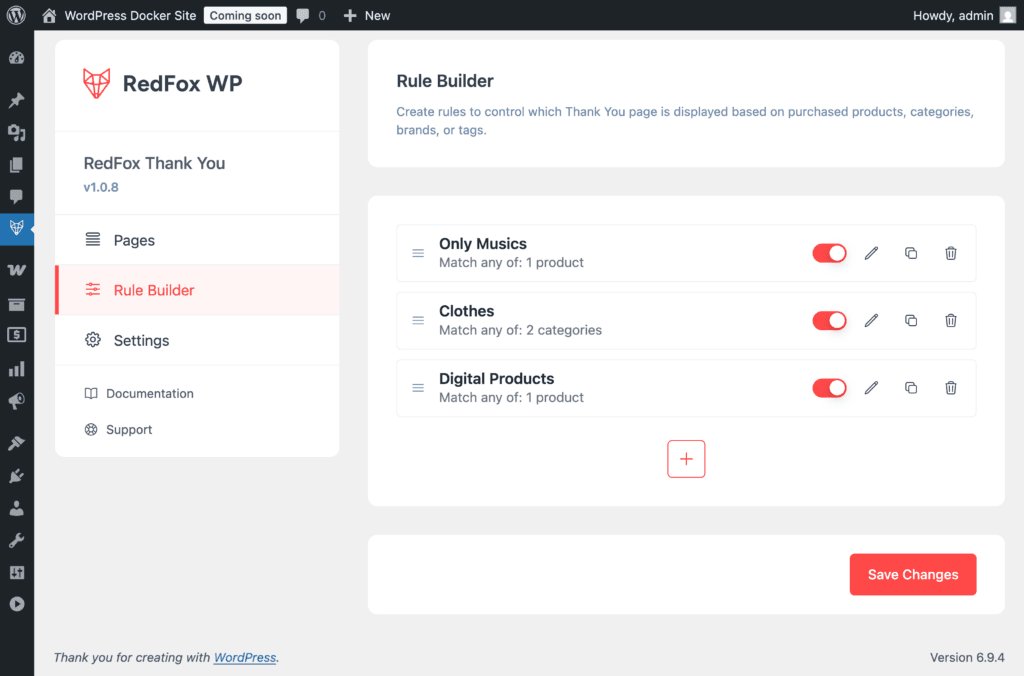
- Create multiple rules, each with its own conditions and thank you page
- Choose between “Match Any” (OR) and “Match All” (AND) logic per rule
- Set priorities to control which rule takes precedence when multiple rules match
- Enable or disable individual rules without deleting them
- Drag-and-drop reordering for quick priority management
When to Use#
Use Rule Builder When:
- You want to show a branded thank you page for orders containing specific products
- Different product categories should have different post-purchase messaging
- You run promotions for specific brands and want a custom follow-up page
- Tagged products (e.g., “holiday”, “clearance”) need a unique thank you experience
- You need to combine multiple conditions to target a specific customer segment
Use Single Product Thank You Instead When:
- You want a one-to-one mapping between a product and its thank you page
- The thank you page is specific to a single product, not a group of products
How It Works#
Evaluation Flow#
When a customer completes an order, the plugin evaluates rules in the following order:
- Rules are sorted by priority — higher priority rules are evaluated first.
- Each enabled rule is checked — the rule must have at least one condition and a valid thank you page assigned.
- Conditions are evaluated — depending on the match type, either all or any conditions must be true.
- First matching rule wins — the thank you page from the first rule that matches is displayed.
- No match fallback — if no rule matches, the global thank you page (or the default WooCommerce page) is shown, depending on your Thank You Page Type setting.
Priority System#
- Each rule has a numeric priority. Higher priority rules are evaluated first.
- New rules are automatically assigned the next highest priority.
- Drag-and-drop a rule in the list to change its priority — rules at the top have the highest priority.
- When multiple rules could match an order, only the first matching rule (by priority) is applied.
Condition Types#
Each rule contains one or more conditions. A condition checks whether the order contains items matching a specific criteria.
Products#
Match when the order contains any of the selected products.
- Select one or more products from your WooCommerce catalog
- Both parent products and product variations are checked
- Searchable dropdown — type to filter products by name
Categories#
Match when any product in the order belongs to one of the selected categories.
- Select one or more WooCommerce product categories
- Checks the
product_cattaxonomy on each order item - Searchable dropdown — type to filter categories by name
Brands#
Match when any product in the order belongs to one of the selected brands.
- Select one or more product brands
- Compatible with multiple brand plugins:
- WooCommerce Brands (
product_brand) - Perfect WooCommerce Brands (
pwb-brand) - YITH WooCommerce Brands (
yith_product_brand) - The plugin automatically detects which brand taxonomy is available in your store
- Searchable dropdown — type to filter brands by name
Tags#
Match when any product in the order has one of the selected tags.
- Select one or more WooCommerce product tags
- Checks the
product_tagtaxonomy on each order item - Searchable dropdown — type to filter tags by name
Match Types#
Each rule has a match type that determines how its conditions are combined.
Match Any (OR)#
The rule matches if at least one condition is true.
Example: A rule with “Match Any” and two conditions — Products: “T-Shirt” and Categories: “Accessories” — will match if the order contains a T-Shirt or any product from the Accessories category.
Match All (AND)#
The rule matches only if every condition is true.
Example: A rule with “Match All” and two conditions — Categories: “Electronics” and Tags: “Premium” — will match only if the order contains a product that is in the Electronics category and a product tagged “Premium”.
Creating a Rule#
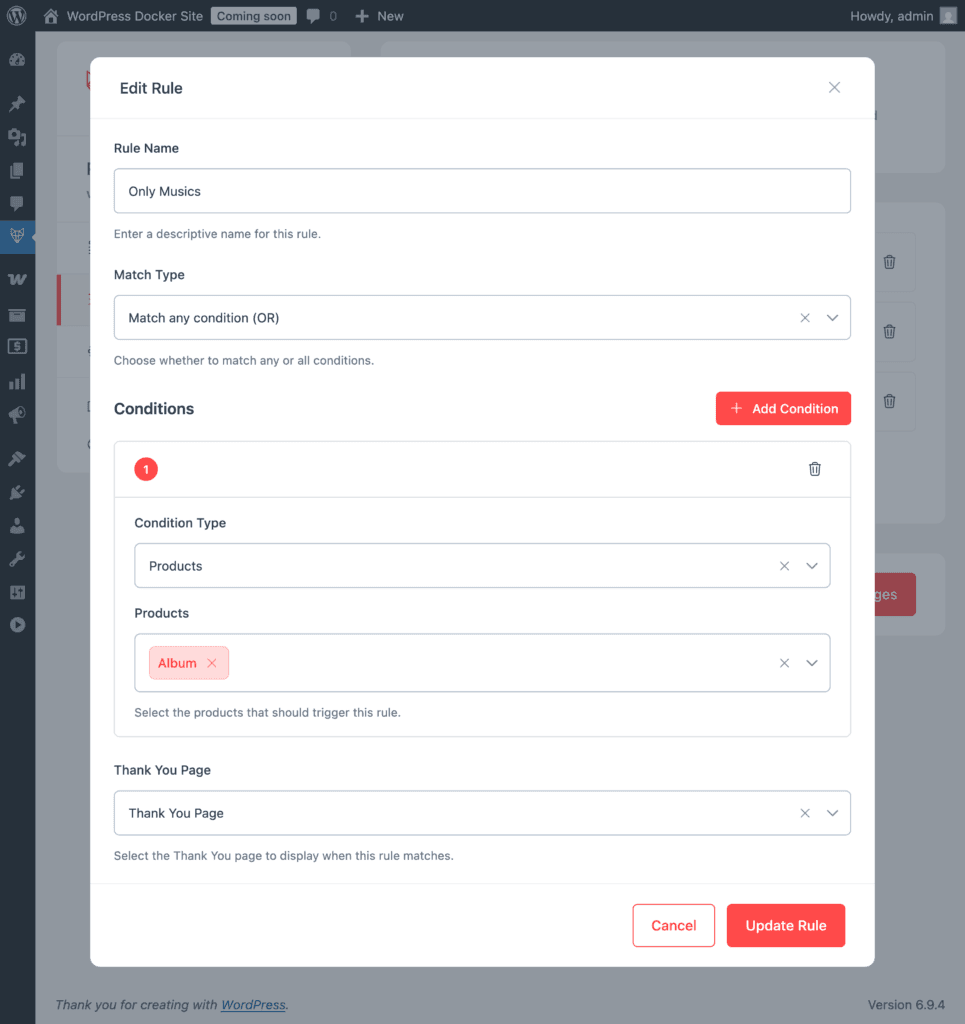
- Navigate to RedFox Thank You → Rule Builder.
- Click Create Your First Rule (if no rules exist) or the + button to add a new rule.
- In the Rule Edit modal:
- Rule Name — Enter a descriptive name (e.g., “Premium Electronics Thank You”).
- Match Type — Choose “Match any condition (OR)” or “Match all conditions (AND)”.
- Conditions — Click “Add Your First Condition” or “Add condition” to add conditions.
- Select a condition type (Products, Categories, Brands, or Tags).
- Search and select the values for that condition.
- Add more conditions as needed.
- Thank You Page — Select the thank you page to display when this rule matches. Only published Thank You pages appear in the dropdown.
- Click Create Rule.
- Click Save Changes at the bottom of the Rule Builder page to persist your rules.
Managing Rules#
Enable / Disable#
Toggle the switch next to any rule to enable or disable it. Disabled rules are skipped during evaluation.
Edit#
Click the edit icon on a rule to open the Rule Edit modal. Modify the name, match type, conditions, or thank you page, then click Update Rule.
Duplicate#
Click the duplicate icon to create a copy of an existing rule. The duplicated rule is added with the next highest priority. This is useful when creating similar rules with slight variations.
Delete#
Click the delete icon to remove a rule. This action cannot be undone once changes are saved.
Reorder#
Drag and drop rules in the list to change their priority. Rules at the top have the highest priority and are evaluated first.
Save Changes#
All rule changes (add, edit, delete, reorder, enable/disable) are held in memory until you click Save Changes. The page warns you if you attempt to navigate away with unsaved changes.
Thank You Page Type Settings#
The Thank You Page Type setting (found in RedFox Thank You → Settings) controls how the Rule Builder and Single Product Thank You features interact with the global thank you page. This setting determines the fallback behavior when no rule or product-specific page matches.
| Setting | Rule Builder | Single Product | Fallback |
|---|---|---|---|
| Show globally selected custom Thank You page | Active | Active | Global custom thank you page |
| Rule Builder and Single Product only | Active | Active | Default WooCommerce thank you page |
| Rule Builder only | Active | Inactive | Default WooCommerce thank you page |
| Single Product only | Inactive | Active | Default WooCommerce thank you page |
| Default WooCommerce Thank You page | Inactive | Inactive | Default WooCommerce thank you page |
When the Rule Builder is active:
- If a rule matches, that rule’s thank you page is shown.
- If no rule matches, the fallback depends on the setting above.
When both Rule Builder and Single Product are active, rules are evaluated first (priority 10), then Single Product assignments override if they match (priority 20).
Tips#
- Start broad, then refine — Begin with a single condition per rule. Add more conditions as you understand your customer segments.
- Use priorities wisely — Place more specific rules at a higher priority than general ones. A rule matching “Premium T-Shirts” should be above a rule matching all “T-Shirts”.
- Test with real orders — Place test orders to verify your rules are matching correctly before going live.
- Name rules descriptively — Clear names make it easier to manage rules as your list grows.
- Disable instead of delete — If you’re unsure about a rule, disable it rather than deleting it. You can re-enable it later.
- Check your Thank You Page Type setting — Make sure the setting in Settings matches how you want Rule Builder and Single Product Thank You to interact.