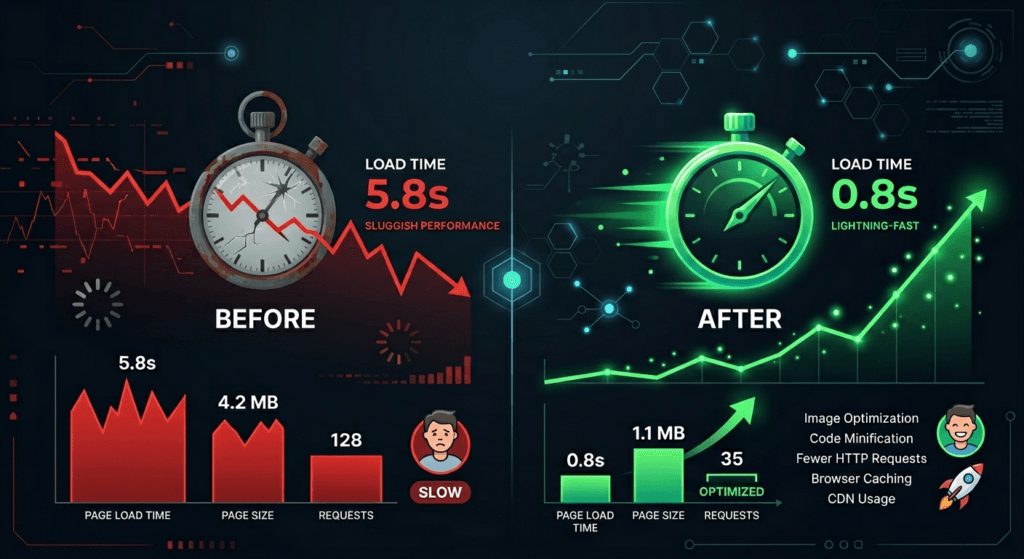
Is your WordPress website feeling sluggish? You’re not alone. Studies show that 40% of visitors abandon a website that takes more than 3 seconds to load. In today’s fast-paced digital world, every millisecond counts. A slow site doesn’t just frustrate visitors—it hurts your search rankings, conversion rates, and bottom line.
The good news? WordPress site optimization doesn’t require advanced technical skills. With the right strategies and tools, you can dramatically improve your site’s performance and provide a seamless experience for your visitors.
In this comprehensive guide, we’ll walk you through proven WordPress site optimization techniques that can help you achieve lightning-fast load times. Whether you’re running a blog, e-commerce store, or business website, these actionable tips will transform your site’s speed and performance.
What is WordPress Site Optimization?#
WordPress site optimization refers to the process of improving various technical and content-related aspects of your website to ensure faster load times, better user experience, and higher search engine rankings. It involves a combination of server-side configurations, caching mechanisms, content delivery strategies, and code optimizations.
Why WordPress Site Optimization Matters#
Search engines like Google have made page speed a ranking factor since 2010. With the introduction of Core Web Vitals, performance metrics now directly impact your search visibility. But beyond SEO, optimization matters because:
- Faster sites convert better: Every 100ms improvement in load time can boost conversion rates by 8%
- Mobile users demand speed: 53% of mobile visitors leave pages that take longer than 3 seconds to load
- Better user engagement: Faster sites see lower bounce rates and higher time-on-page metrics
Measure Your Current Performance#
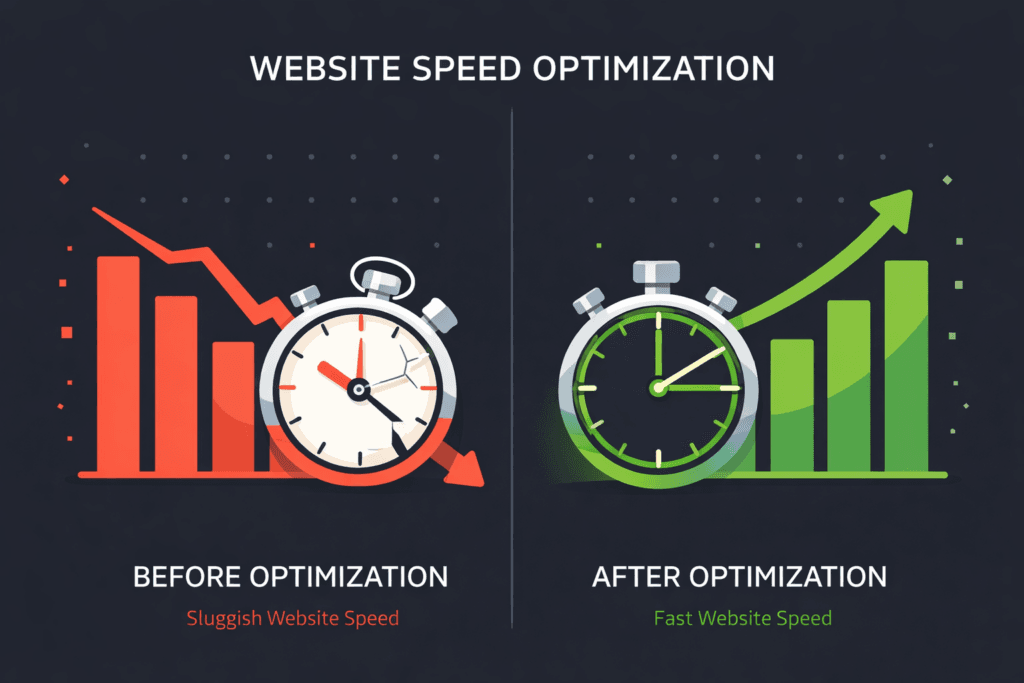
Before diving into optimization strategies, you need a baseline. Measuring your current performance helps identify bottlenecks and track improvements.
Essential Testing Tools#
Start by running your site through these free tools:
| Tool | What It Measures | Best For |
|---|---|---|
| Google PageSpeed Insights | Core Web Vitals, overall performance score | SEO-focused analysis |
| GTmetrix | Load time, page size, request count | Detailed waterfall reports |
| Pingdom | Uptime monitoring, speed tests | Ongoing performance tracking |
| WebPageTest | Real browser testing, filmstrip view | Advanced debugging |
Understanding Core Web Vitals#
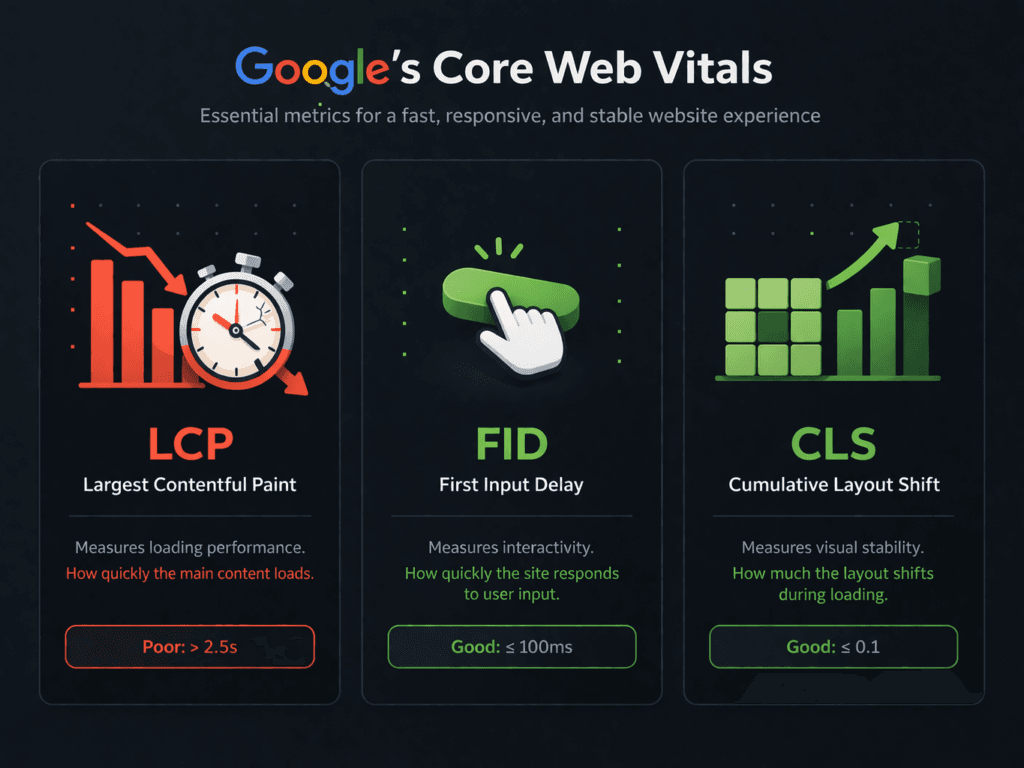
Google’s Core Web Vitals are essential metrics for WordPress site optimization:
- Largest Contentful Paint (LCP): Measures loading performance. Target: Under 2.5 seconds
- First Input Delay (FID): Measures interactivity. Target: Under 100 milliseconds
- Cumulative Layout Shift (CLS): Measures visual stability. Target: Under 0.1
How to Test Properly#
For accurate results:
- Test from multiple geographic locations
- Run tests on both desktop and mobile devices
- Test different pages (homepage, internal pages, posts)
- Test during different times of day to account for traffic variations
Choose Quality WordPress Hosting#
Your hosting provider is the foundation of your site’s performance. Even with perfect optimization, poor hosting will limit your results.
Types of WordPress Hosting#

Shared Hosting (Starting at $3-10/month)
- Pros: Budget-friendly, easy to get started
- Cons: Shared resources, limited performance, affected by other sites
- Best for: New sites with low traffic
Managed WordPress Hosting ($20-100+/month)
- Pros: Optimized servers, automatic updates, built-in caching, expert support
- Cons: Higher cost
- Best for: Business sites, e-commerce, growing blogs
VPS/Cloud Hosting ($20-200+/month)
- Pros: Dedicated resources, scalable, full control
- Cons: Requires technical knowledge
- Best for: Advanced users, high-traffic sites
Top Recommended Hosts for Performance#
- Kinsta: Built on Google Cloud, automatic scaling, built-in CDN
- WP Engine: Proprietary EverCache technology, free SSL, staging environments
- SiteGround: Managed WordPress plans with SuperCacher, SG Optimizer plugin
- Cloudways: Cloud-based with Cloudflare integration, easy server scaling
Hosting Optimization Tips#
- Choose a data center location closest to your primary audience
- Look for hosts offering NGINX servers (faster than Apache)
- Ensure PHP 8.0+ is supported and enabled
- Verify HTTP/2 or HTTP/3 support is available
- Check for built-in object caching (Redis or Memcached)
Implement Caching Solutions#
Caching is one of the most impactful WordPress site optimization techniques. It serves static copies of your pages instead of processing them dynamically for each visitor.
How Caching Works#
When a visitor arrives at your site, WordPress typically:
- Queries the database
- Executes PHP code
- Assembles the page
- Generates HTML
With caching, this entire process is skipped for returning visitors, serving pre-generated HTML instantly.
Browser Caching#
Browser caching stores static files on your visitor’s device, reducing load times for repeat visits. Add this to your .htaccess file or use a caching plugin:
## EXPIRES CACHING ##
<IfModule mod_expires.c>
ExpiresActive On
ExpiresByType image/jpg "access plus 1 year"
ExpiresByType image/jpeg "access plus 1 year"
ExpiresByType image/gif "access plus 1 year"
ExpiresByType image/png "access plus 1 year"
ExpiresByType image/svg+xml "access plus 1 year"
ExpiresByType text/css "access plus 1 month"
ExpiresByType application/pdf "access plus 1 month"
ExpiresByType application/javascript "access plus 1 month"
ExpiresByType application/x-javascript "access plus 1 month"
ExpiresByType application/x-shockwave-flash "access plus 1 month"
ExpiresByType image/x-icon "access plus 1 year"
ExpiresDefault "access plus 2 days"
</IfModule>
## EXPIRES CACHING ##
Server-Side Caching Plugins#
W3 Total Cache (Free)
- Comprehensive caching options
- Page caching, object caching, database caching
- CDN integration support
WP Super Cache (Free)
- Simple setup, beginner-friendly
- Three caching modes to choose from
- Recommended for shared hosting
WP Rocket (Paid, starts at $49/year)
- Most user-friendly option
- Automatic configuration
- Includes minification, lazy loading, CDN integration
- Worth the investment for most sites
LiteSpeed Cache (Free)
- Best for LiteSpeed servers
- Powerful optimization features
- Image optimization included
Object Caching Configuration#
For advanced WordPress site optimization, implement object caching using Redis or Memcached. This stores database query results, reducing database load:
- Install Redis on your server (or ask your host)
- Install the Redis Object Cache plugin
- Edit
wp-config.phpto add:
define('WP_REDIS_HOST', '127.0.0.1');
define('WP_REDIS_PORT', 6379);Optimize Images for Web Performance#
Images often account for 50-70% of a page’s total size. Proper image optimization is crucial for WordPress site optimization.
Image Format Selection#
Choose the right format for each image type:
| Format | Best For | Compression |
|---|---|---|
| WebP | Photos, graphics with gradients | Excellent (30% smaller than JPEG) |
| AVIF | Modern browsers, next-gen compression | Superior (50% smaller than JPEG) |
| JPEG | Photographs, complex images | Good compression |
| PNG | Graphics, logos, transparent images | Lossless, larger file sizes |
| SVG | Icons, logos, simple graphics | Scalable, tiny file sizes |
Image Optimization Workflow#
- Resize before uploading: Never upload full-resolution images directly
- Featured images: 1200-1920px width
- Blog content: 800-1200px width
- Thumbnails: 150-300px width
- Compress images: Use these tools:
- TinyPNG / TinyJPG (Free, web-based)
- ImageOptim (Mac desktop app)
- Squoosh (Google’s free tool)
- Lazy load images: Defer loading off-screen images until needed
- Most caching plugins include this feature
- Native lazy loading:
<img loading="lazy" src="...">
WordPress Image Optimization Plugins#
Smush (Free version available)
- Automatic compression on upload
- Bulk optimization for existing images
- Lazy loading included
- WebP conversion available
EWWW Image Optimizer (Free version available)
- Cloud-based optimization
- Converts images to WebP
- PDF optimization included
ShortPixel (Free tier: 100 images/month)
- Excellent compression algorithms
- Glossy, lossy, and lossless modes
- AVIF format support

Minify and Combine CSS & JavaScript#
Every CSS and JavaScript file on your site requires a separate HTTP request. Minifying and combining these files reduces requests and file sizes.
What is Minification?#
Minification removes unnecessary characters from code:
- Whitespace
- Line breaks
- Comments
- Unnecessary formatting
CSS Minification Techniques#
Using Caching Plugins (Recommended)
Most caching plugins (W3 Total Cache, WP Rocket) handle minification automatically:
- Enable CSS minification in plugin settings
- Enable combine files option
- Test your site afterward—minification can sometimes break layouts
Manual Minification for Advanced Users
- Use tools like CSS Minifier or CSSNano
- Replace original files with minified versions
- Always keep backups
JavaScript Optimization#
JavaScript optimization requires more care since scripts often depend on loading order:
Defer Non-Critical JavaScript
Move non-essential scripts to the footer or add defer attribute:
<script defer src="script.js"></script>Remove Unused JavaScript
- Identify unused JS using Chrome DevTools Coverage tab
- Remove jQuery if your theme doesn’t require it
- Disable plugins’ JS/CSS on pages where they’re not needed
Recommended Plugins#
Autoptimize (Free)
- Simple interface
- Minifies CSS, JS, and HTML
- CDN integration
- Aggregate files option
WP Rocket (Paid)
- Automatic minification
- Combine files option
- Delay JavaScript execution
- Remove unused CSS
Implement a Content Delivery Network (CDN)#

A Content Delivery Network stores copies of your site’s static files on servers worldwide, delivering content from the server closest to each visitor.
How CDNs Work#
Without CDN:
User in London → Requests file → Server in New York → Response (150ms+ delay)With CDN:
User in London → Requests file → CDN Server in London → Response (20ms delay)Best CDN Options#
Cloudflare (Free plan available)
- Global network with 200+ locations
- Free SSL certificate
- DDoS protection
- Browser caching
- Recommended for most sites
BunnyCDN (Starting at $1/month)
- Excellent performance-to-price ratio
- Pay-as-you-go pricing
- Easy WordPress integration
- Real-time analytics
KeyCDN (Starting at $4/month)
- High-performance network
- Detailed analytics
- Image optimization add-on
- Origin shield feature
CDN Setup Process#
- Create a CDN account (Cloudflare is recommended for beginners)
- Add your website to the CDN dashboard
- Update nameservers (point your domain to CDN)
- Install CDN plugin or configure your caching plugin
- Purge cache and test your site
Cloudflare WordPress Integration#
- Sign up at cloudflare.com
- Add your website
- Copy the nameservers Cloudflare provides
- Update nameservers at your domain registrar
- Wait 1-48 hours for propagation
- Install Cloudflare WordPress plugin
- Enable “Auto Optimize” in plugin settings
Database Optimization & Cleanup#
Over time, your WordPress database accumulates clutter that slows down queries. Regular cleanup is essential for WordPress site optimization.
Database Clutter Sources#
- Post revisions: Automatic saves of every edit
- Spam comments: Captured by Akismet but not deleted
- Transients: Temporary options that expire
- Orphaned metadata: Left behind from deleted posts/plugins
- Trash items: Posts/comments in trash (auto-empty after 30 days)
Manual Database Cleanup#
Limit Post Revisions
Add to wp-config.php:
define('WP_POST_REVISIONS', 10); // Keep only last 10 revisionsDisable Post Revisions Entirely (Not recommended)
define('WP_POST_REVISIONS', false);Empty Trash Regularly
Add to wp-config.php:
define('EMPTY_TRASH_DAYS', 7); // Empty trash weeklyDatabase Optimization Plugins#
WP-Optimize (Free version available)
- Cleans database tables
- Optimizes database structure
- Caches with page caching
- Compresses images
Advanced Database Cleaner (Free version available)
- Manual or automatic cleanup
- Clean specific post types
- Schedule automatic cleanups
Direct Database Optimization#
For advanced users, optimize via phpMyAdmin:
- Access phpMyAdmin through your hosting control panel
- Select your WordPress database
- Check all tables
- Select “Optimize table” from the dropdown
- Run the optimization
Optimize WordPress Configuration#
Several WordPress settings can be tweaked for better performance.
Disable Heartbeat API#
The WordPress Heartbeat API consumes server resources by autosaving posts and showing concurrent user edits. Reduce its frequency:
Via Code (Add to functions.php):
add_filter('heartbeat_send', function($response) {
$response['heartbeat_interval'] = 60; // Check every 60 seconds
return $response;
});Via Plugin: Use “Heartbeat Control” plugin for easier configuration
Limit Post Revisions#
As mentioned in database optimization, limit post revisions to prevent database bloat.
Disable XML-RPC#
XML-RPC enables remote publishing but is often exploited for attacks:
Via .htaccess:
<Files xmlrpc.php>
Order Deny,Allow
Deny from all
</Files>Reduce External HTTP Requests#
Each external script (Google Fonts, Facebook widgets, etc.) adds load time:
- Host fonts locally (use “Oh Add Font Local” plugin)
- Use lightweight comment systems instead of Facebook comments
- Remove unnecessary social sharing scripts
- Choose themes with minimal dependencies
Use a Lightweight, Performance-Focused Theme#
Your theme significantly impacts performance. Heavy, feature-rich themes often include unnecessary code and bloat.
Signs of a Bloated Theme#
- Dozens of demo content imports
- Built-in page builders with excessive features
- Multiple included plugins (slider, portfolio, etc.)
- Poor Google PageSpeed scores out of the box
- Large file sizes
Recommended Performance Themes#
GeneratePress (Free + Premium from $59/year)
- Lightweight (under 30KB)
- Clean, modular code
- Accessibility-ready
- Excellent developer support
Astra (Free + Premium from $47/year)
- Under 50KB in size
- Visual customization without page builders
- Built with speed in mind
- WooCommerce optimized
Kadence (Free + Pro from $59/year)
- Performance-first design
- Header/footer builder
- Block editor integration
- Fast loading times
Block-Based Themes (Free)
- Twenty Twenty-Three, Twenty Twenty-Four, Twenty Twenty-Five
- Minimal dependencies
- Native block editor support
- No page builder bloat
Theme Optimization Tips#
- Remove unused theme features
- Disable theme plugins you don’t need
- Use child themes for customizations (safer updates)
- Choose themes based on features you’ll actually use
- Avoid themes with “all-in-one” marketing promises
Keep WordPress, Themes, and Plugins Updated#
Regular updates include performance improvements and security patches that impact WordPress site optimization.
Why Updates Matter#
- Performance improvements: Each version often includes code optimization
- Security patches: Vulnerabilities can slow your site through exploitation
- Compatibility: Updates ensure smooth interaction with PHP versions
- Bug fixes: Resolving issues that may impact performance
Update Best Practices#
- Create backups before updating
- Use a backup plugin or your host’s backup system
- Never skip this step
- Test updates on staging site first
- Many managed hosts offer staging environments
- Catch conflicts before they affect live site
- Update in this order:
- WordPress core
- Themes
- Plugins
- Check your site after each update
- Load homepage and key pages
- Test key functionality (forms, checkout, etc.)
Cleanup Unused Plugins#
Every installed plugin, even inactive ones:
- Takes up space in your database
- May load code on your site
- Creates potential security vulnerabilities
Audit your plugins regularly:
- Deactivate and delete unused plugins
- Replace multiple plugins with one comprehensive solution
- Choose lightweight alternatives when available
Implement Lazy Loading#
Lazy loading defers loading off-screen images and iframes until the user scrolls near them, improving initial page load performance.
Native Lazy Loading#
Modern browsers support lazy loading with a simple HTML attribute:
<img loading="lazy" src="image.jpg" alt="Description">
<iframe loading="lazy" src="video.html"></iframe>WordPress Native Support#
WordPress 5.5+ automatically adds lazy loading to images. For iframes, use:
add_filter('wp_iframe_tag_add_loading_attribute', function($value, $iframe) {
return 'lazy';
}, 10, 2);Plugin Options#
a3 Lazy Load (Free)
- Lazy loads images, iframes, and videos
- WooCommerce support
- Exclude specific elements
Lazy Load by WP Rocket (Free)
- Simple, lightweight option
- Works with most themes
- No configuration needed
Enable GZIP Compression#
GZIP compression reduces file sizes by up to 70% before they’re sent to the browser.
How GZIP Works#
Without GZIP: 100KB file → 100KB transfer
With GZIP: 100KB file → 30KB transfer → Browser expands back to 100KB
Enable GZIP via .htaccess#
Add this code to your .htaccess file:
<IfModule mod_deflate.c>
# Compress HTML, CSS, JavaScript, Text, XML and fonts
AddOutputFilterByType DEFLATE application/javascript
AddOutputFilterByType DEFLATE application/rss+xml
AddOutputFilterByType DEFLATE application/vnd.ms-fontobject
AddOutputFilterByType DEFLATE application/x-font
AddOutputFilterByType DEFLATE application/x-font-opentype
AddOutputFilterByType DEFLATE application/x-font-otf
AddOutputFilterByType DEFLATE application/x-font-truetype
AddOutputFilterByType DEFLATE application/x-font-ttf
AddOutputFilterByType DEFLATE application/x-javascript
AddOutputFilterByType DEFLATE application/xhtml+xml
AddOutputFilterByType DEFLATE application/xml
AddOutputFilterByType DEFLATE font/opentype
AddOutputFilterByType DEFLATE font/otf
AddOutputFilterByType DEFLATE font/ttf
AddOutputFilterByType DEFLATE image/svg+xml
AddOutputFilterByType DEFLATE image/x-icon
AddOutputFilterByType DEFLATE text/css
AddOutputFilterByType DEFLATE text/html
AddOutputFilterByType DEFLATE text/javascript
AddOutputFilterByType DEFLATE text/plain
AddOutputFilterByType DEFLATE text/xml
# Remove browser bugs (only needed for really old browsers)
BrowserMatch ^Mozilla/4 gzip-only-text/html
BrowserMatch ^Mozilla/4\.0[678] no-gzip
BrowserMatch \bMSIE !no-gzip !gzip-only-text/html
Header append Vary User-Agent
</IfModule>Enable via Plugin#
Most caching plugins (WP Rocket, W3 Total Cache) enable GZIP compression automatically.
Verify GZIP is Working#
Check your site at gzipwtf.com or varvy.com/tools/gzip/
Monitor Performance Regularly#
WordPress site optimization is an ongoing process. Regular monitoring ensures your site maintains optimal performance.
Set Up Performance Monitoring#
Google Search Console
- Monitor Core Web Vitals report
- Track mobile vs. desktop performance
- Identify pages needing attention
Uptime Monitoring
- UptimeRobot (Free)
- Pingdom (Paid)
- StatusCake (Free tier available)
Real User Monitoring (RUM)
- Google Analytics Site Speed reports
- Cloudflare Web Analytics (Free)
- New Relic (Paid)
Monthly Maintenance Checklist#
- Run PageSpeed Insights and note scores
- Check for WordPress, theme, and plugin updates
- Review and optimize new images
- Clean database with optimization plugin
- Review installed plugins for unused options
- Check CDN is working properly
- Review hosting resource usage
- Test site on mobile devices
Performance Tracking Spreadsheet#
Create a simple spreadsheet to track:
| Date | PageSpeed Mobile | PageSpeed Desktop | Load Time | Actions Taken |
|---|---|---|---|---|
| 1/1/25 | 65 | 85 | 3.2s | Baseline measurement |
| 1/15/25 | 78 | 92 | 2.1s | Added caching plugin |
| 2/1/25 | 85 | 95 | 1.8s | Optimized images |
Common WordPress Optimization Mistakes to Avoid#
Even with the best intentions, common mistakes can undermine your WordPress site optimization efforts.
1. Installing Too Many Optimization Plugins#
Running multiple caching or optimization plugins simultaneously can:
- Create conflicts
- Cause duplicate functionality
- Slow your site instead of speeding it up
Solution: Choose one comprehensive caching plugin and avoid overlapping functionality.
2. Over-Minifying CSS/JavaScript#
Aggressive minification and combining can break your site:
- Layout issues
- Non-functional JavaScript
- Theme conflicts
Solution: Test thoroughly after enabling minification. Combine files only if needed.
3. Not Testing After Changes#
Making changes without testing can introduce issues:
- Broken functionality
- Display problems
- Checkout failures
Solution: Test key pages after every optimization change.
4. Optimizing Images Without Backups#
Compressing images without backups can:
- Result in quality loss
- Make original unavailable
- Cause irreversible changes
Solution: Always keep original images in a separate folder.
5. Ignoring Mobile Performance#
Focusing only on desktop performance:
- Mobile users outnumber desktop users
- Google uses mobile-first indexing
- Core Web Vitals apply to mobile
Solution: Prioritize mobile optimization and test on real devices.
6. Using Low-Quality Hosting to Save Money#
Cheap hosting often leads to:
- Shared resources during traffic spikes
- Limited optimization options
- Poor server response times
Solution: Invest in quality hosting—performance starts with your server.
Advanced Optimization Techniques#
For sites requiring maximum performance, consider these advanced WordPress site optimization strategies.
HTTP/2 and HTTP/3 Implementation#
HTTP/2 allows multiple simultaneous requests over a single connection:
- Single connection for all resources
- Server push capability
- Binary protocol for efficiency
HTTP/3 (QUIC) improves on HTTP/2:
- Faster connection establishment
- Better handling of network changes
- Improved performance on unreliable networks
Most quality hosts now support HTTP/2. HTTP/3 support is growing.
Server Push Implementation#
Server push sends resources to the browser before they’re requested:
location = /index.html {
http2_push /style.css;
http2_push /script.js;
}Critical CSS Inlining#
Identify and inline CSS required for above-the-fold content:
- Use tools like Critical CSS Generator or Penthouse
- Extract critical CSS
- Inline in
<head>section - Defer remaining CSS
Preconnect to Important Origins#
Help browsers establish early connections to important third-party domains:
<link rel="preconnect" href="https://fonts.googleapis.com">
<link rel="preconnect" href="https://fonts.gstatic.com" crossorigin>
<link rel="dns-prefetch" href="https://www.google-analytics.com">Implement Redis Object Caching#
As mentioned earlier, Redis caching can dramatically reduce database load:
// Enable Redis in wp-config.php
define('WP_REDIS_HOST', '127.0.0.1');
define('WP_REDIS_PORT', 6379);
define('WP_REDIS_DATABASE', 0);
define('WP_CACHE_KEY_SALT', 'your-site-url.com');Conclusion#
WordPress site optimization is a journey, not a destination. By implementing the strategies outlined in this guide, you can achieve significant performance improvements that translate to better user experiences, higher search rankings, and increased conversions.
Remember: WordPress site optimization doesn’t have to happen overnight. Implement changes gradually, test thoroughly, and track your progress. Even small improvements compound over time to create a significantly faster, more efficient website.